When someone searches for a business near them, your Google Business Profile is often the first thing they see. It’s there before your website and before your social channels, and it’s working for you around the clock (as long as it’s set up properly).
The problem is when businesses claim their profile, add a phone number and leave it there. An incomplete or outdated listing costs you visibility in the local map pack, and it costs you customers who choose a competitor whose profile answers their questions.
In this guide, we’ll show you how to optimise your Google Business Profile step by step. We’ll cover choosing the right categories, writing a description that works, getting more reviews and tracking what’s working.
What Is a Google Business Profile?
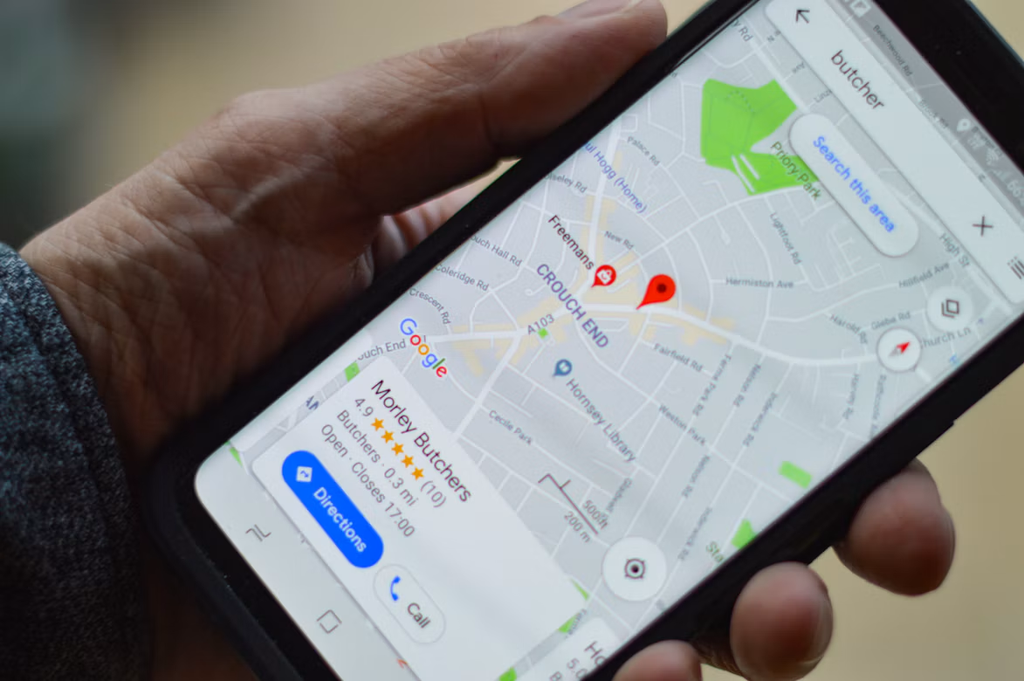
When someone searches with local intent, like “hotel in Sheffield” or “plumber near me”, Google often shows a map with a few businesses above the regular search results. This is known as the local pack, and your Google Business Profile is what gets you into it.
Google says local results are based mainly on three factors.
- Relevance: how well your profile matches what someone is searching for
- Distance: how far your business is from the searcher, or from the location in their search
- Prominence: how well known your business is, based on things like reviews, links and your wider online presence
You can’t do much about distance, but your profile has a big influence on relevance and prominence. That’s why it counts as a key part of your off-page SEO.
Your profile is also often where the decision gets made. Customers can call you, get directions, read reviews and book without ever visiting your website. A well-optimised profile does more than help people find you. It brings in enquiries on its own.
How to Set Up and Verify Your Google Business Profile
Before you can optimise anything, you need access to your profile. You might already have a listing without realising it. Google can create profiles automatically from publicly available information, and customers can suggest businesses too. So start by checking what’s already out there.
Claiming an Existing Listing
Search for your business name on Google Maps. If your listing appears with a “Claim this business” or “Own this business?” option, select it and follow the steps.
Sometimes the listing is already managed by someone else, like a former employee, a previous agency or the business’s past owner. In that case, you can request access through Google, and the current owner will be asked to respond.
Top tip: If you work with an agency, add them as a manager rather than an owner. That way, your business always keeps ownership of its own profile.
If there’s no listing at all, go to business.google.com and sign in with a Google account. Use a shared business account rather than a personal one if you can. Then add your business name and category, your location or service area, and your contact details.
Verifying Your Business
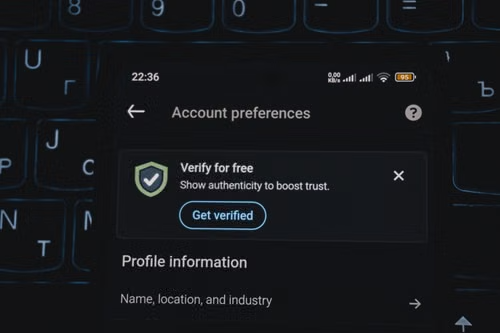
Verification proves to Google that you’re the genuine owner. Until your business is verified, your edits may not appear publicly, and some features won’t be available.
Google chooses which verification methods to offer based on things like your business type and location. They can include:
- Phone call or text
- Recorded video
- Live video call
- Postcard sent to your address
Video verification is increasingly common. You’ll usually be asked to record a short clip showing your signage, your location and proof that you manage the business, like unlocking the door or using the till.
To keep things smooth, make sure your business name and address match exactly what’s on your signage and website before you apply. Once you’re verified, avoid making repeated changes to your name or address, because big edits can trigger re-verification.
Google Business Profile Optimisation: Step by Step
Once you’re verified, it’s time to make your profile work harder. Here’s where to focus.
Choose the Right Primary and Secondary Categories
Your primary category has a big influence on which searches you appear for, so pick the one that most closely describes your core business. Be specific: “Italian restaurant” beats “restaurant”. You can then add up to nine secondary categories for other services you offer, but only add the ones that genuinely apply. Adding unrelated categories can do more harm than good.
Write a Business Description That Works
You have 750 characters to tell people what you do, who you do it for and what makes you different. Lead with the most important information, because only the start of the description shows before people click to expand it. Include your key services and location naturally, but write for people, not search engines. Keyword stuffing reads badly and breaks Google’s guidelines.
Keep Your Name, Address and Phone Number Consistent
Your name, address and phone number (often shortened to NAP) should match exactly everywhere they appear online, including your website, social profiles and directory listings. Inconsistent details can confuse both Google and your customers. Use your real business name too. Adding extra keywords to your name breaks Google’s guidelines and can get your profile suspended.
Set Accurate Opening Hours, Including Holiday Hours
Few things frustrate customers more than turning up to a closed door that Google said was open. Keep your regular hours up to date, and add special hours for bank holidays, Christmas and any one-off closures. Google often prompts you to confirm holiday hours ahead of time, so it’s worth keeping an eye on your notifications.
Add Your Services, Products or Menu
Listing what you offer gives Google more information to match you with relevant searches, and gives customers answers before they’ve even picked up the phone. Add short descriptions and prices where it makes sense. If you’re a restaurant or café, link to your menu or upload it directly.
Upload High-Quality Photos and Videos
Photos give people a feel for your business before they visit. Upload a clear logo and cover photo, then add pictures of your premises (inside and out), your team and your products or services. Aim for real, well-lit images over stock photos, and keep adding new ones regularly so your profile looks active.
Add Attributes and Booking Links
Attributes are the small details that help customers decide, like wheelchair access, free Wi-Fi, outdoor seating or whether you’re dog-friendly. Select every one that applies. If customers can book appointments, tables or rooms online, add a booking link so they can take action straight from your profile.
Use Google Posts to Share Updates and Offers
Google Posts let you share news, offers and events directly on your profile. They’re a simple way to show customers (and Google) that your business is active. Try to post at least once or twice a month, add a clear photo and include a button such as “Book” or “Learn more”.
Link to the Right Page on Your Website
Your website link doesn’t have to go to your homepage. If you have several locations, link each profile to its own location page. If one service drives most of your enquiries, consider linking to that page instead.
How to Get More Google Reviews
Reviews are one of the most influential parts of your profile. They build trust with potential customers, and they’re a key part of how Google judges your prominence.
Asking for Reviews the Right Way
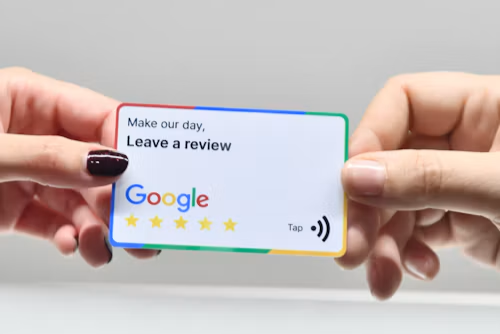
The simplest way to get more reviews is to ask, and to make it easy. Google gives you a short review link in your profile dashboard, which you can share in follow-up emails, on receipts, by text or as a QR code at your till or reception desk. The best time to ask is straight after a positive experience, while it’s fresh in the customer’s mind.
Do keep it fair, though. Google doesn’t allow you to offer incentives for reviews or to only ask customers you think will be happy.
How to Respond to Positive and Negative Reviews
Reply to every review you can, good or bad. For positive reviews, a personal thank-you that mentions something specific goes a lot further than a copy-and-paste message.
Negative reviews need a bit more care. Respond calmly and politely, acknowledge the issue, and offer to continue the conversation offline. Your reply isn’t only for the reviewer. Every future customer who reads it will see how you handle problems.
Common Google Business Profile Mistakes to Avoid
Even a well set-up profile can slip over time. Here are the most common mistakes we see.
- Setting it up and forgetting about it: Out-of-date hours, old photos and months without a post all suggest a business that isn’t paying attention. Make your profile part of your regular routine.
- Stuffing keywords into your business name: It might seem like a shortcut to better rankings, but it breaks Google’s guidelines and can get your profile suspended.
- Having duplicate listings: Two profiles for the same location split your reviews and confuse customers. If you find a duplicate, ask Google to remove it rather than running both.
- Ignoring suggested edits: Anyone can suggest changes to your profile, and Google sometimes applies them automatically. Check your profile regularly to make sure nobody has changed your details without you knowing.
- Leaving reviews unanswered: Silence can look like you don’t care, especially when the review is negative.
How to Track Your Google Business Profile Performance
Optimisation isn’t a one-off job. Tracking your results shows what’s working and where to focus next.
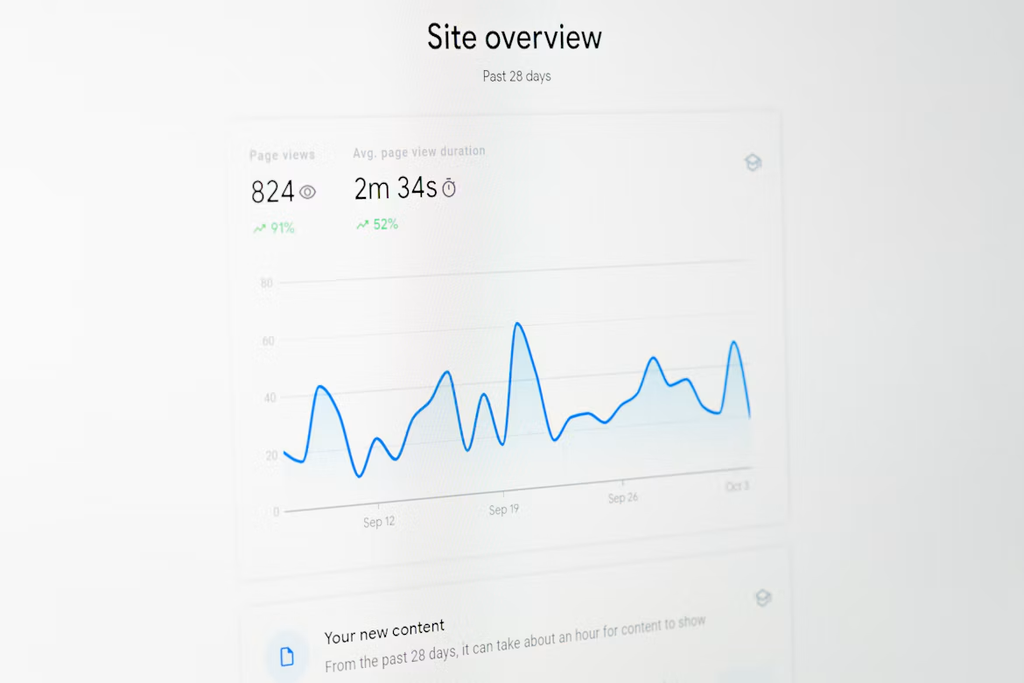
Google gives you a free performance report in your profile dashboard. It shows:
- How many people viewed your profile, and whether they found you on Search or Maps
- The search terms people used to find you
- Calls, messages, bookings and direction requests
- Clicks through to your website
Check it monthly and look for trends rather than one-off spikes. If people are finding you for searches you weren’t expecting, that’s useful insight for your services list, your description and even your website content.
Want More Local Customers Finding You on Google?
That’s where we come in. Our SEO team helps businesses across Sheffield, South Yorkshire and beyond get found by the customers who matter most. We can:
- Audit your current profile and spot quick wins
- Optimise every section, including categories, descriptions and photos
- Keep your profile active with regular posts and updates
- Connect your profile with your wider local SEO strategy, so your website and listing work together
Want to see how your profile measures up? Get in touch for a free quote and book a discovery call with our team.

Frequently Asked Questions
Is a Google Business Profile free?
Yes. Creating and managing a Google Business Profile is completely free. You only pay if you choose to run Google Ads alongside it, which is a separate service.
How long does it take for changes to show on Google?
Most edits appear within a few days, although Google may review some changes for longer. Editing your business name, address or category can sometimes trigger re-verification, so it’s best to make those changes only when you need to.
How often should I update my Google Business Profile?
Update it whenever anything changes, like your hours, services or contact details. Beyond that, aim to post once or twice a month, add new photos regularly and reply to reviews as they come in.
Can I have a Google Business Profile without a physical address?
Yes. If you visit customers rather than having them come to you, you can set up your profile as a service-area business. You can hide your address and show the areas you cover instead.
Does a Google Business Profile help my website’s SEO?
Your profile mainly helps you appear in the local pack and on Google Maps, rather than boosting your website’s rankings directly. It still supports your wider local SEO, though. It sends customers to your website, builds trust through reviews and reinforces your business details across Google.